

 Download PDF
Bulk Editing Assets
Note – this process is available to Content Manager level users. If you have a Colart User account and would like to request that your account is changed to Content manager, please contact thebanksupport@colart.com
If you’re dealing with multiple assets at a time, you can use the bulk editing options to avoid having to manually adjust, reducing the possibility of missing items or applying edits inconsistently.
Select your items using one of two methods.
• Click the folder icon underneath the name of the assets
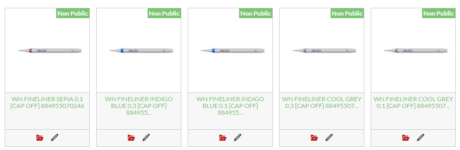
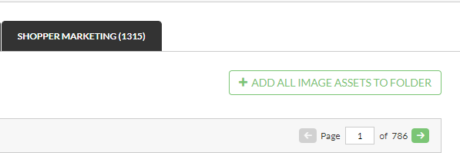
• Sort the items, either through the search function or using the tags system. Once narrowed down, click “Add all image Assets to Folder”, found in the top right corner. (Note, this will add all of the assets in the category tab, if you wish to add multiple forms of media, such as images and videos, you will need to do this on all tabs)
Click on the green Assets folder button in the top right corner (next to the drop-down list for the menu), which will show the number of files that have been added.

Select the Batch Edit drop-down menu, which gives you the following options:
• Titles & Description
• Add SKUs to Existing
• Overwrite Existing SKUs
• Tags
• Image Type
• Status
• Show on External Sites
• Show for resellers
• Publish Date
• Expiry Date
• Delete Images
Once you’ve finished making edits, don’t forget to select Remove All to empty your folder. This ensures you won’t apply future batch edits to the same assets again. As a rule, you should always try and empty your folder after use.
The Bank Statistics – April 2020