


Opex Template Teaching Agenda:
Purpose of the session: To go over the CIHL Operating Expense Templates in Vena
- Setting up account in Vena and then logging in:
Single sign on use this link- https://colart.vena.io
Or you can go through the quicklick on the intranet site.
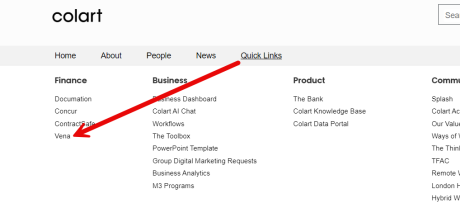
Please bookmark this site!
If you log out and you see the vena log in screen you cannot log in from there (since we enabled Single sign on).
- To do list: This shows what your tasks are.
The most important things to note here are Type & Role:
o Type
§ Input – means that the data needs to be input in here. The owner needs to input the information and submit it.
§ Review- means that the data in the template needs to be reviewed. You can put in comments to the owner and then you can approve the information.
o Role
§ Owner- You are responsible for the task (Whether its input or review) and you can submit the task
§ Support worker- You can make changes in the template, but you can’t submit task
§ Watcher- you can view the task (aka you can see what is in the template) but you can’t make changes or submit it
Scenarios using Type & Roles
– If it is an input task and you are the owner, it is your responsibility to input the data into the template
– If it is an input task and you are the support worker or the watcher, you are NOT responsible for inputting data to complete the task. You can view the template and make changes but you can’t submit the task.
– If it is a review task and you are the owner, you are responsible to review the task (in this case reviewing a completed template), leave comments if needed and accept or reject the task.
– If it is a review task and you are the support worker or the watcher, you are NOT responsible to review the task (in this case reviewing a completed template). You can view the template but you cannot make changes or leave comments.
Other important info on the to do list:
o Due date – the date that task is due
o Task name– entity number, cost center and type of input
o Status–
§ Work in Progress means you have started it
§ Grey Started means that you haven’t been in it or worked on it yet, but it is available to begin completing.
o Activity – entity number, entity name and activity name
o Activity item– just the activity name
o Process
§ Colart Planning Process- this is done when doing planning such as forecast or budget
§ Monthly Maintenance Process- this is done each month. At this point in time, only finance individuals should have tasks associated with the monthly maintenance process.
- Opening the template:
When you open a template from Vena, it will either automatically save the file to your Downloads folder or ask you where you want to save it. The location you save the file doesn’t matter, and here’s why:
· The file is only saved to your hard drive so you can open it in Excel.
· All the important data is saved through the Vena365 add-in (the Excel add-in that connects your Excel file to Vena). This is where you will save your changes back to Vena—not to your hard drive.
· Once you close the file on your computer, you won’t need to navigate back to where you saved it. The next time you want to access the template, you must reopen it from the Vena web browser to ensure it connects to Vena365 again.
· The file saved to your hard drive will no longer be connected to Vena once it’s closed, so reopening it from your hard drive won’t work.
To keep things tidy, I recommend saving the file to a folder like “Temporary Files” and periodically deleting everything in that folder since it’s not needed after closing the file.
It’s very important to understand this process so you don’t get stuck trying to open disconnected files from your hard drive. Always start from the Vena web browser when you need to work on a template.
Click on the file. Click all facilities and then go to the comparison period you want to compare to. The comparison periods are the following:
-
- Actual- historical actuals
- Actual + Plan- this can’t be used yet since this is the first time we are populating Budget but once we are in FC1, if we look at this it will include periods through March 2025 of actuals and periods from April 2025 afterwards from plan
- AARO Snapshots – These were previous budgets and forecasts loaded into Vena
- Entering/removing data in the template:
- Vena 365 add-in: Ensure you can see the Vena 365 Add-In on the right hand side of your screen. If Vena 365 is not there, click insert and then Vena 365 on the right.
- Entering Data: You can enter data into the pink cells by typing directly into the cells or you can copy and paste from a comparison scenario into there. You can also use formulas so for example say the total expense for the year in an account is $1,200 and you want it evenly spread amount the months. You can do 1,200/12 in each of the cells to get 100 per month. Just note that formulas do not save in Vena. If you put a formula in the pink cells and then hit save and refresh the formulas will go away and you will be left with the hard coded numbers. There is no need to go back and copy paste values, the save and refresh will turn them into hard coded numbers for you.
- Data Input Tools (section to the right hand side in vena 365):
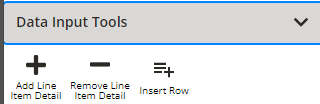
i. Adding Line item detail– Adding in descriptions and amounts relating to certain people. For example, you can add line item detail for a certain person’s travel.
ii. Removing line item detail – If you want to get rid of the detail you added.
iii. Insert row– You can add a row in order to add an account in here.
-
- Delete accounts – If you want to delete an account, you need to make sure all the accounts in that grouping are blank and there is nothing in columns J- L (AARO account, BS Counter company, and AARO Business Unit). As long as there is nothing in the Plan year and nothing in the comparison period, it will go away
- Add & Delete groupings-
i. Go to the ‘Input Missing AARO Groupings’ at the bottom to add the account. Once you add the account, it will add it up to the top portion and add the grouping.
ii. If you want to delete a grouping you need to make sure all the accounts in that grouping are blank and there is nothing in columns J- L (AARO account, BS Counter company, and AARO Business Unit). As long as there is nothing in the Plan year and nothing in the comparison period, it will go away
-
- Totals and subtotals: These are formulas that cannot be changed. This ensures better controls over the numbers in the templates and will make it less likely for manual errors.
- Columns that don’t need to be filled in for BU2025: we have scoped out the Balance sheet for now. So, for now, there is no need to worry about columns J- L (AARO account, BS Counter company, and AARO Business Unit) for BU25. These should be blank. That will be something we need to use in the future and will mainly just be a finance function.
- Saving files:
-
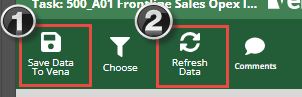
- After you update the amounts and want to save them, you need to click 1) save data to vena and then 2) refresh data. THIS IS VERY IMPORTANT. If you click refresh without saving, your data won’t save. Or if you finish input without saving your data won’t save. So, make sure you are clicking on the save button. The typical excel save button will save the file to your computer, but it will not save the data to vena.
- Choose function:
 You can switch back and forth between comparison periods. So for example, if you are on FC2 and you want to go back to actuals you can use the choose function to switch. You can also use this to switch between facilities or cost centers if it gives that option.
 - Comments:
 Click on the comment button when you are on the cell you want to leave a comment on. This won’t repeat in Dec 2026 because its specific intersection in vena. You can no longer highlight a row when you aren’t complete with it. We should use the comment column to document if it is not complete yet. You can write “TO BE COMPLETED” in the comments section
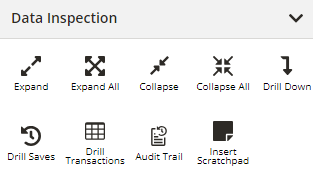
- Data Inspection tools:
-
- Expand and Collapse functions – not applicable in the opex templates so we are not going to go over them on the training today
- Drill down – You can use this to get to the lowest level of Vena detail and it shows every dimension within vena (However this is still more summarized than M3)
- Drill transactions– This function is only going to work for Actuals and it shows how the data came in from M3 (for example it shows specific M3 vouchers)
- Drill saves– you can see the changes to the intersection (one cell in template)
- Audit Trail– you can see all the changes to the template
- Insert Scratchpad– You can insert a tab that you can do scratch work or notes on. This is a great place to save formulas since formulas do not get saved in the input cells but they do get saved in the scratch pad. The scratchpad gets saved to the individual task so it will be saved for a specific template. Any user or user group assigned to the task will be able to view the same scratchpad.
- Closing a template:
- ALWAYS hit ‘Save Data to Vena’ before you want to leave a template
- After saving, if you aren’t done, you should click ‘resume later’ and then ‘go back to vena’ and then back on the task list screen you click ‘return file’. This checks it back into the Vena database.
- Two people cannot be editing the same file at once so if you cannot access a file, it may be because someone else has it open. You can however view the same file at the same time as someone else. This is a setting that we have chosen, but we can discuss how we can make file collaborative if this becomes too restrictive per task. Since most tasks are assigned to an individual it shouldn’t be an issue, but please let us know if it is.
- Submitting a task
- Don’t hit submit until you are absolutely certain you are done with the template and want to send it to a reviewer. If you click submit task, it will send it to the reviewer so they can perform their review function.
- Reviewer
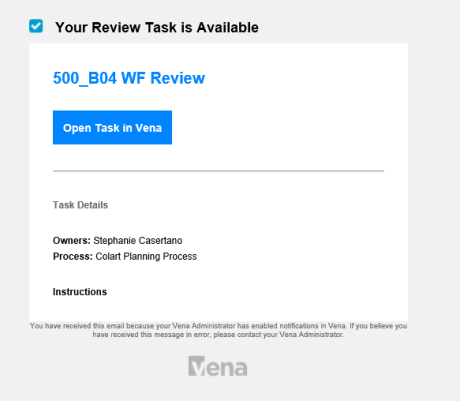
- Once an input task is submitted, the reviewer can review the template. The reviewer will get an email like this which shows that the task is ready for them to review
-
- To review the data you click ‘review data’. The reviewer will see the template in “View only” mode and they cannot change or save data. However, they can add comments of things that need to be changed by the person doing the input. If there are things that they want changed, they would hit reject and put the reason for rejection. You can list the changes in the reason for rejection or refer to the comments you left within the template.

-
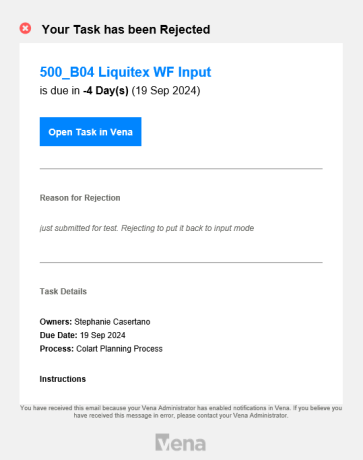
- The input person would receive an email like the one below. They can see the reason for rejection here or they can go into the template and click ‘comments’ and see all the comments made by the reviewer. Once everything is updated based on the reviewers’ comments, the input person can submit the task again.
-
- A reviewer is not able to see due dates until the task becomes available for them to complete. The reason for this is because if the due date is dependent on completion (usually the same day or one day after initial submission) then Vena can’t calculate what that date is until prerequisite has been done. Most if not all reviewers should be watchers or support workers on the input task, so they should be able to see when that task is supposed to be due.